You aim, you fire, and the enemy is already behind you. You click to attack a monster and your character attacks a second later. Everyone calls it lag, but "lag" is really several different problems that feel similar. Knowing which one you have is the first step to fixing it, and it also tells you when the problem is not on your side at all.
Ping, jitter and packet loss
Ping (or latency) is the time it takes for data to travel from your computer to the game server and back, measured in milliseconds (ms). Lower is better. As a rough guide, under 50 ms feels instant, 50 to 100 ms is fine for most games, and above 150 ms starts to be noticeable, especially in shooters.
Jitter is how much your ping jumps around. A steady 80 ms often feels better than a ping that swings between 30 and 200, because the game cannot predict where things are.
Packet loss means some data never arrives. Even one or two percent causes rubber-banding, shots that do not register and characters teleporting around.
Lag that is not ping
Two problems often get blamed on the connection when they are something else:
- Low FPS. If the whole picture stutters, even when you stand still, your computer is struggling, not your internet. Lowering graphics settings helps here; changing servers does not.
- Server-side lag. If everyone on the server is lagging at the same moment, the server itself is overloaded or badly configured. Nothing on your side will fix that. It is a good reason to try a different server.
Distance matters most
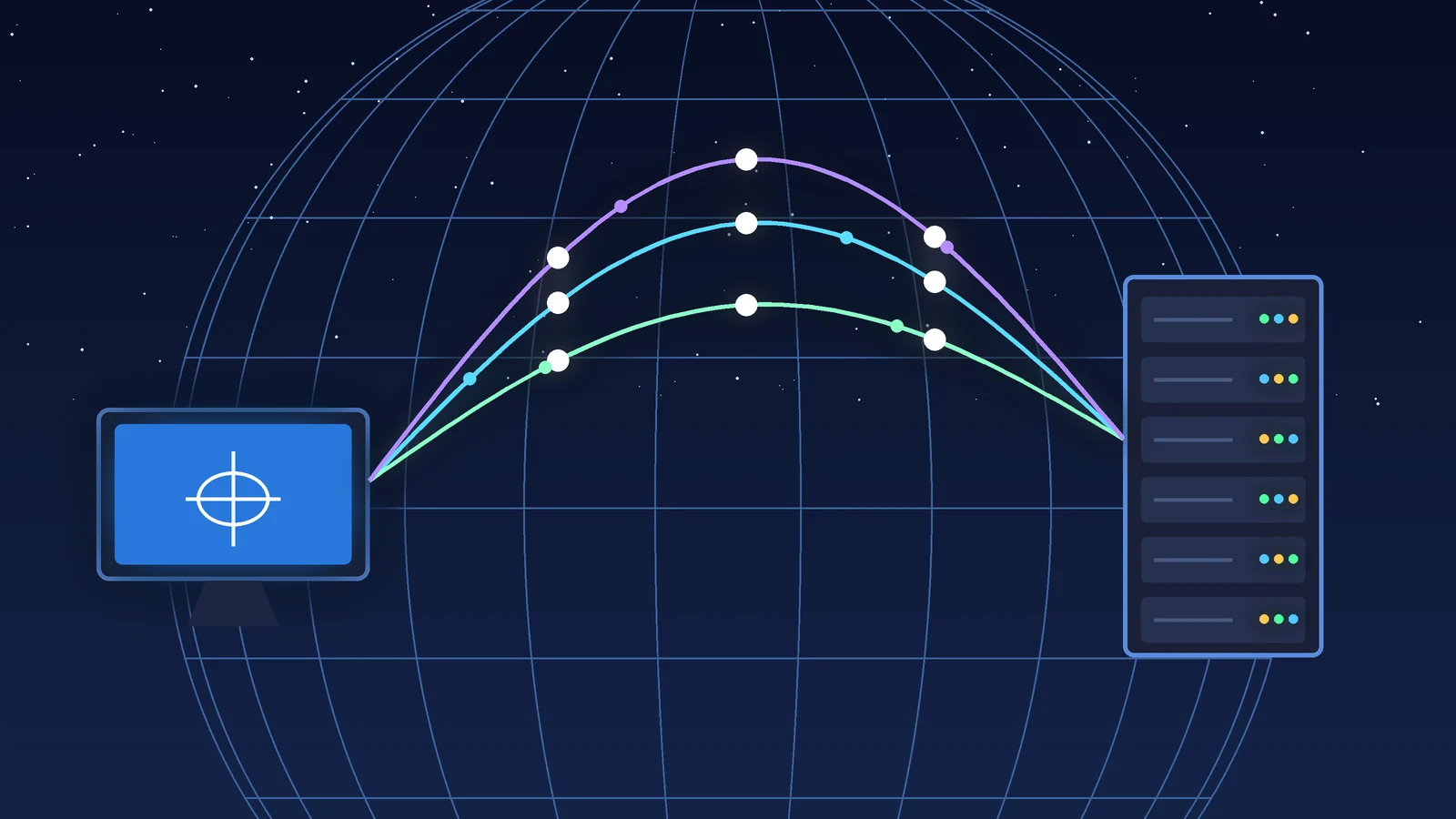
Data travels through fibre fast, but not instantly: roughly 1 ms of round-trip time for every 100 km of cable, before routers and equipment along the way add their share. Real routes are never a straight line either. So a server on another continent will always have high ping, no matter how fast your internet package is. Speed (Mbps) and ping are different things: a 1,000 Mbps connection does not make a distant server close.
That is why the single most effective thing you can do is choose a server near you. On GamezList, server pages show the server's country, so you can look for one in or near your region before you even launch the game.
Fixes on your side
- Use a cable. Wi-Fi adds delay and, more importantly, jitter, especially through walls or when neighbours use the same channels. An Ethernet cable is the biggest single improvement for most players.
- If you must use Wi-Fi, get closer. Use the 5 GHz band if your router supports it, and keep the router out of cupboards and away from thick walls.
- Stop background traffic. Game updates, cloud backups, streaming on another device or a big download can fill your connection and send your ping up. Pause them while you play.
- Restart your router. It sounds too simple, but routers that run for months can slow down. A restart takes two minutes.
- Turn on QoS or SQM if your router has it. These features prioritise game traffic, or stop your connection from clogging up when someone else in the house is using it heavily. They are often the cure for ping spikes that only happen at certain times of day.
- Update network drivers on your PC, and close programs you do not need.
Common myths
- "Change your DNS to lower ping." DNS only affects how quickly an address is looked up when you connect. It does not change your in-game ping.
- "A gaming VPN always helps." A VPN adds an extra stop on the way. In rare cases it can avoid a bad route your provider uses, but usually it makes ping slightly worse.
- "Faster internet means lower ping." Only if your current connection is being filled up. Otherwise, more speed does not shorten the distance.
How to test your connection
Most games show your ping on the scoreboard or in a network overlay. Watch it for a few minutes: if the number is steady but high, it is distance; if it jumps around, look at Wi-Fi and background traffic; if you see packet loss, restart your equipment and, if it continues, contact your provider. On Windows you can also open a command prompt and run ping followed by the server's address to see how stable the connection is.
Pick the right server first
Whether you play Counter-Strike 2, Rust, Minecraft or an MMORPG like Metin2, the best ping fix happens before you join: choose a well-run server close to you. Then a cable, a quiet connection and a router restart now and then will handle most of the rest.